
Webgains Smart Commissions tool enables you to create flexible commission rules based on the products you sell, customer segments and the publisher which has driven the sale.
New for 2026, we have overhauled our Smart Commissions tool, with a new-look interface and all-new functionality. More efficient, more intuitive, more flexibility.
Smart Commissions Overview
Smart Commissions have been overhauled to make them more flexible, with new powerful Commission Rule types so that you can customise your program’s commission offering like never before.
One of the biggest changes in our updated Smart Commissions is the organisation of publisher-based commission rules into Commission Groups, so that if multiple publishers set to receive the same commission rules become a ‘Group’. For example, if you wanted to reward all of your CPC type publishers 5% commission, you would create a Group and add your CPC publishers. Then, you can easily create new commission schemes for your ‘CPC’ Group.
This gives you the power to design flexible, performance‑driven commission strategies that match your commercial goals, and the ability to quickly create a new commission rule for your Group.
Read all about Publisher Commission Groups
Also new, each commission rule created will fall under a certain ‘Commission Type’, allowing you to easily identify if the commission is your Default, a generic commission, or for a specific publisher commission group. General rules that apply to all publishers in your program are shown with the ‘All Publishers’ type label.
Homepage
The new Smart Commissions homepage will look a bit different to what you may have seen in our Version 1, including a new timeline and table view allowing you to quickly and easily view your programs commission and which are currently active.
At the top of the page you’ll see 3 tabs, the first being Commission rules, which is the new homepage for Smart Commissions and gives you an overview of all of your commission rules.

Manage Groups
The second tab is Manage Groups, which is where you can create your Commission groups of publisher sites to help organise commission rules that apply to specific Publishers. This flexibility lets you reward the partners that drive the outcomes you care about - all inside one Smart Commission tool.
Read more on Commission Groups
Manage Tiers
The third tab is Manage Tiers, where you can create Commission Tiers to provide a varied commission for Publishers based on their monthly transactions or on the value of each individual transaction. Adding tiers makes your program more attractive, giving publishers goals to earn extra commission or bonuses. Incentive thresholds should be achievable and worthwhile.
Find out how to create Commissions Tiers
Commission Rules
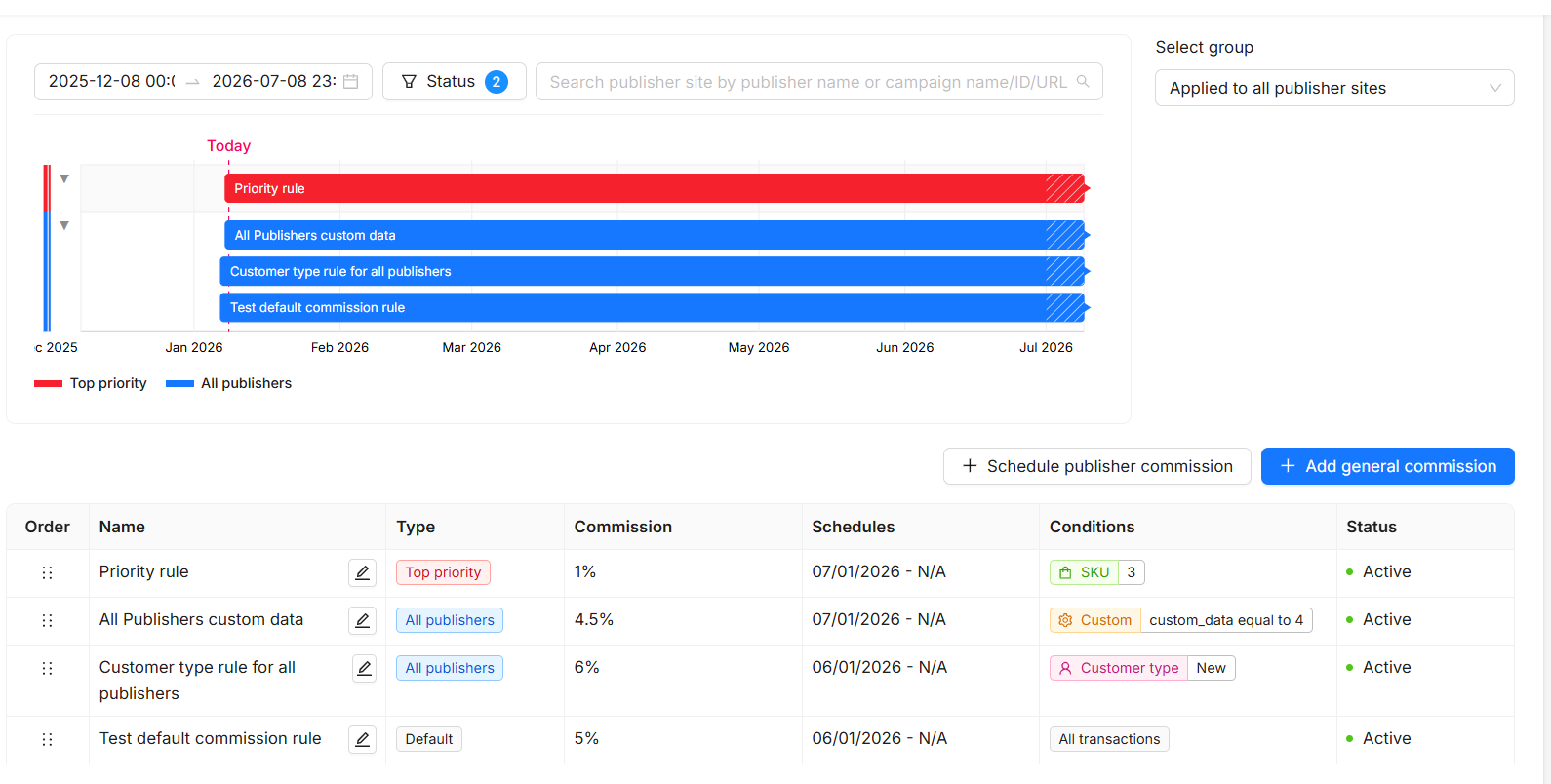
Commission rules is the default homepage for the new Smart Commissions area. This page shows all of the commission rules in your program in a timeline and a table format.
On both the timeline and the table, the rules are ordered from highest priority to least. When a transaction occurs, the rules are checked from the top of the list to the bottom.
Timeline
The timeline provides a calendar view of all your program’s commissions, so you can see which commission will apply on which date.
You can control the date range of the timeline using the calendar inputs at the top of the page to look further into the future.

Each bar represents a different commission rule, with the highest priority rules shown at the top.
You can also see Draft, Expired and Deactivated rules using the Status filter.
The Publisher Search allows you to see which rule applies to any given Publisher in your program.
You can also use the Group dropdown to toggle between viewing General rules which apply to all Publisher sites, and rules that apply to specific Commission Groups (more on Commission Groups here)
Table View
The table view shows more detail on those Commission rules:

As with the timeline, the highest priority commission rules are shown at the top of the table. Each transaction will be evaluated against the conditions in the commission rules from the top down until a match is found.
Order
If there is a ‘Top Priority’ rule, all tracked transactions will be checked against this first, but if none of the conditions match (e.g. if the rule specifies products that didn’t appear in the transaction’s tracked items), then the next rule will be checked, and so on down the Order list.
You can drag-and-drop general commission rules to re-order the list. This will then determine the order that the rules are checked.
Table Columns
Each commission shows:
-
Name
-
Type
-
Default - the default commission rule for the program, should no other rule matches be met.
-
All publishers - general commission rules which apply to all publishers on your program.
-
Group - rules which apply to publishers within a Commission Group.
-
Top priority - A high priority rule that needs to be checked/applied before any others.
-
-
Commission - the commission rate as a percentage, fixed amount per transaction, fixed amount per item, or the range of rates offered by a Commission Tiers.
-
Schedules - show the dates when a commission applies. Outside of these dates, the next rule will be checked/applied.
-
Conditions - any particular conditions that apply to that specific commission rule, such customer type, specific products, or custom data provided through integration.
You can click on any of the commission rules to view/edit in detail.
Creating Commissions
Creating commission rules in Smart Commissions v2 is now faster, more efficient and much more intuitive. The new workflow guides you through each step so you can go from idea to live commission in just a few clicks.
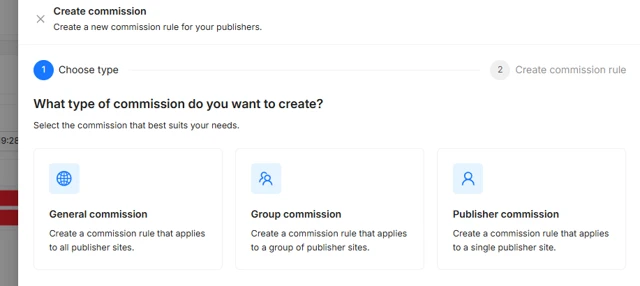
After clicking ‘Create Commission’, you will be prompted to select which type of commission you wish to create:

-
General Commission: this will apply to all publishers on your program.
-
Group Commission: this will then require you to select which publisher commission group you wish to apply the rule for.
-
Publisher Commission: this will then require you to select which single publisher you wish to apply the rule for.
As part of the commission rule creation, you will add your rule name, description, schedule, and type, as well as defining the commission rate (%, £, or Tiered). If the rule is not General, you will also need to ensure you have added the Commission Group that the rule’s rate should be awarded to.
Then, you can determine the conditions of your rule. Options include:
-
Customer Type (new/existing/custom)
-
Product Level
-
Product Category
-
Publisher Source
-
Custom Data
Review your rule, and then Save / Schedule. Once your rule is Saved, you’ll see it within your timeline view (remember to tick Status: Scheduled if it’s in the future).
Learn how to Create Commission Rules, with details on the various options and rule conditions.
The result is a more seamless creation flow: organise publishers with Groups, reward performance with Tiers, and launch new commission strategies quickly.
Dive deeper into our Knowledge Hub to discover how the Webgains Smart Commissions tool can transform your affiliate programme – unlock smarter, more competitive commission strategies that boost performance, attract top partners, and maximise your results.