Smart Commissions enable you to create flexible commission rules based on the products you sell, customer segments and the publisher which has driven the sale.
Each commission rule requires you to outline the scheme name, along with the rate you want to offer. There are then additional rule conditions and options, enabling you to create flexible commission schemes for your program.
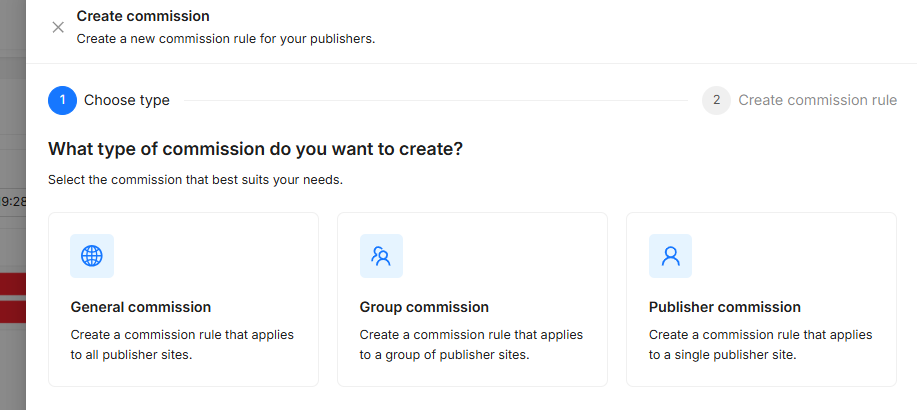
After clicking ‘Create Commission’, you will be prompted to select which type of commission you wish to create:
-
General Commission: will create a commission rule that is applied to all of the publishers in your program
-
Group Commission: creates a rule for publishers within a Publisher Commission Group.
-
To edit your commission group, visit the ‘Manage groups’ page.
-
-
Publisher Commission: enables you to select a single publisher to apply a rule to.
-
When adding the publisher you can see if it is ‘Ungrouped’, or already part of a Publisher Commission group. If it is already part of a group, then a condition will be added to the commission (Labelled ‘Publishers in this Group’) which allows for this publisher to receive a different rate to other publishers in the group.
-
Core Requirements
Name
A title for the commission rule so that it can easily be identified in transactions and reporting.
Description
Additional details to describe the set up of the commission. This should be something you can easily identify and reference.
Commission Rate
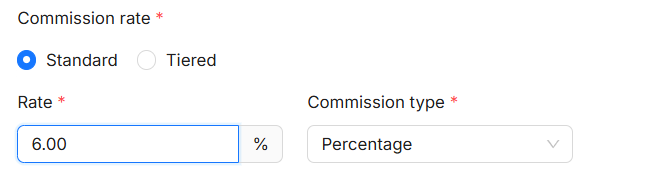
Commission rate - Standard
If offering a Standard commission rate, enter the value for your commission, and then select the Commission type either as a percentage of the transaction value, a fixed value for each transaction, or a fixed value per item within each transaction.
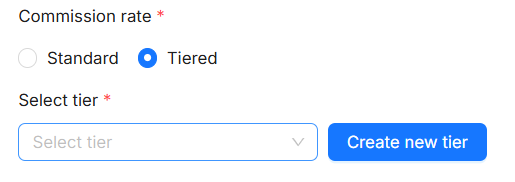
Commission rate - Tiered
In addition to Standard commission rates, you can further incentivise with Commission Tiers, which enable you to vary the commission rate based on monthly transactions, revenue or commissions or based or by basket value. For more on Commission tiers, view here.
Select the tier you wish to offer as part of this scheme creation.
Additional Options - Defining the Commission Type

Set as Default
By checking this option, this commission rule becomes the Default rule for all publishers in the program. This is the rate that all publishers will receive if they don’t match any other conditions.
This Default rate will also be used for any voucher transactions where there is not a set Voucher Commission rate set up. The default rule cannot be created within a group and cannot have any conditions.
Set as Top Priority
By setting a rule as Top priority, it will be moved to top of the commission rule list and will be processed before all other rules.
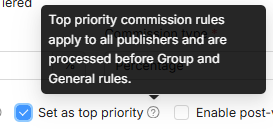
So, all tracked transactions will be checked against this ‘Top Priority’ rule first, but if none of the conditions match (e.g. if the rule specifies products that didn’t appear in the transaction’s tracked items), then the next rule will be checked, and so on down the Order list.

You can drag-and-drop general commission rules to re-order the list. This will then determine the order that the rules are checked.
Enable Post-View Tracking
This option will enable commission to be attributed based on publisher views of your link ('post-view' tracking). You can set the period after a view that transaction is eligible commission in the commission settings.
Schedules
Using the date controls, you can set a commission to continue indefinitely, for a fixed scheduled period or create multiple schedules. Each schedule needs a start and end date and cannot overlap.
Outside of the periods defined in these schedules, this commission rule won’t be applied and the next rule on the timeline will instead be applied.
The date and time for the Smart Commission setup will be determined based on the timezone of the User who configures the commission rule. This means that the commission's timing settings are aligned with the timezone settings of the individual user responsible for establishing the commission parameters.
Conditions
Commission conditions enable you to specify particular criteria required for a publisher to receive the commission rate. Each commission rule can have multiple conditions, and all of the conditions will need to be met for the commission rate to be rewarded. You can only apply one condition of each type in a single commission rule.
Customer type
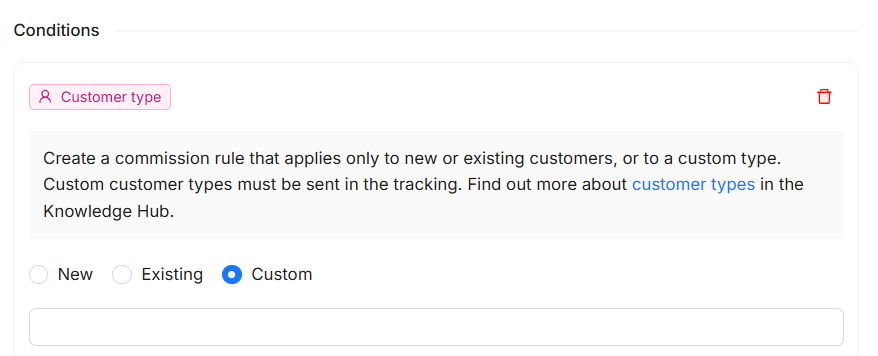
The customer type condition enables you to reward commission based on the customer type information received in the transaction. This will normally either be EXISTING, for customers who have previously made a purchase, or NEW for new customers. Alternatively, you can provide CUSTOM customer type information in your tracking to identify specific customer types.
This data must be sent within your Webgains tracking script. And, if you select Custom, the value you enter must match exactly what is tracked within the ‘CustomerType’ line in the tracked conversion.
For more info: Creating Customer Type Commissions
Products
Commission rules can be set up based on products in your transactions (provided product information is shared via your tracking).
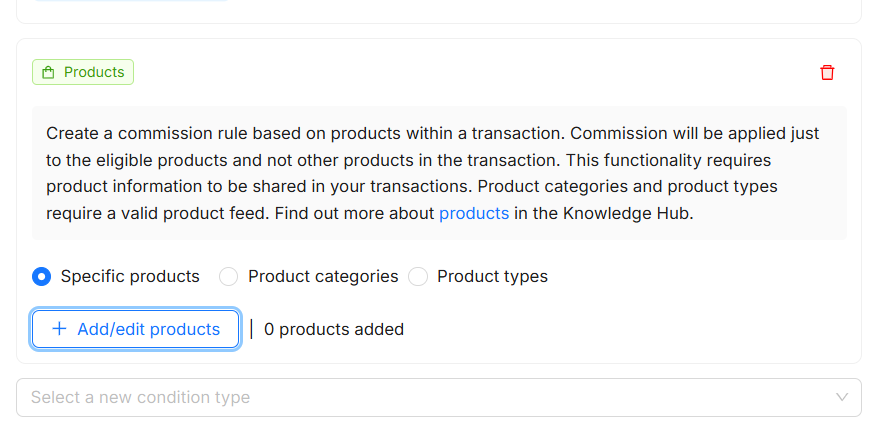
You can create Product based conditions in 3 different ways:
Specific products
The Smart Commission tool allows you to create commission rules on a product level for your program. One option for this is to select specific products to add to your scheme rule.
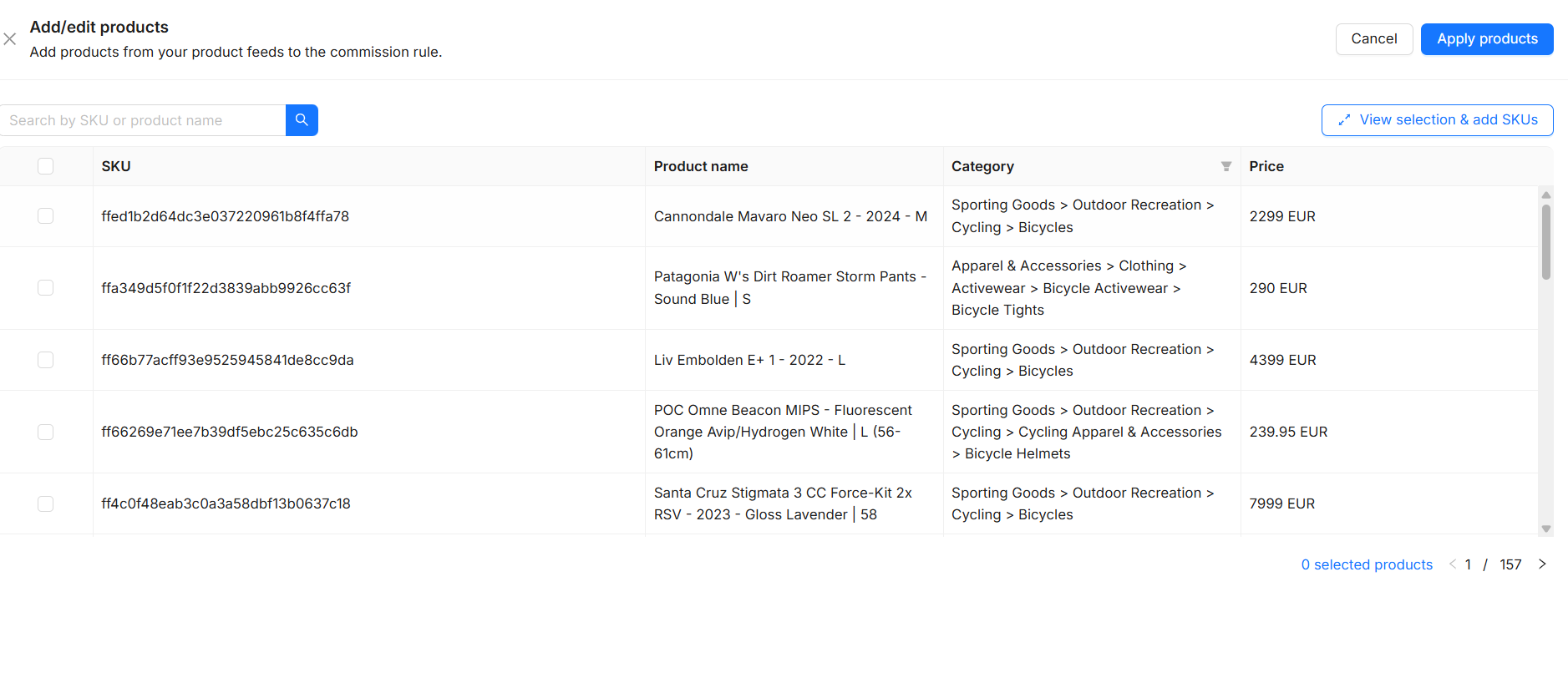
If you want to create a commission rule for a number of individual products, you can either select products (supplied from your Product Feed), or you can manually provide a set of comma separated Product SKUs to add to the rule.
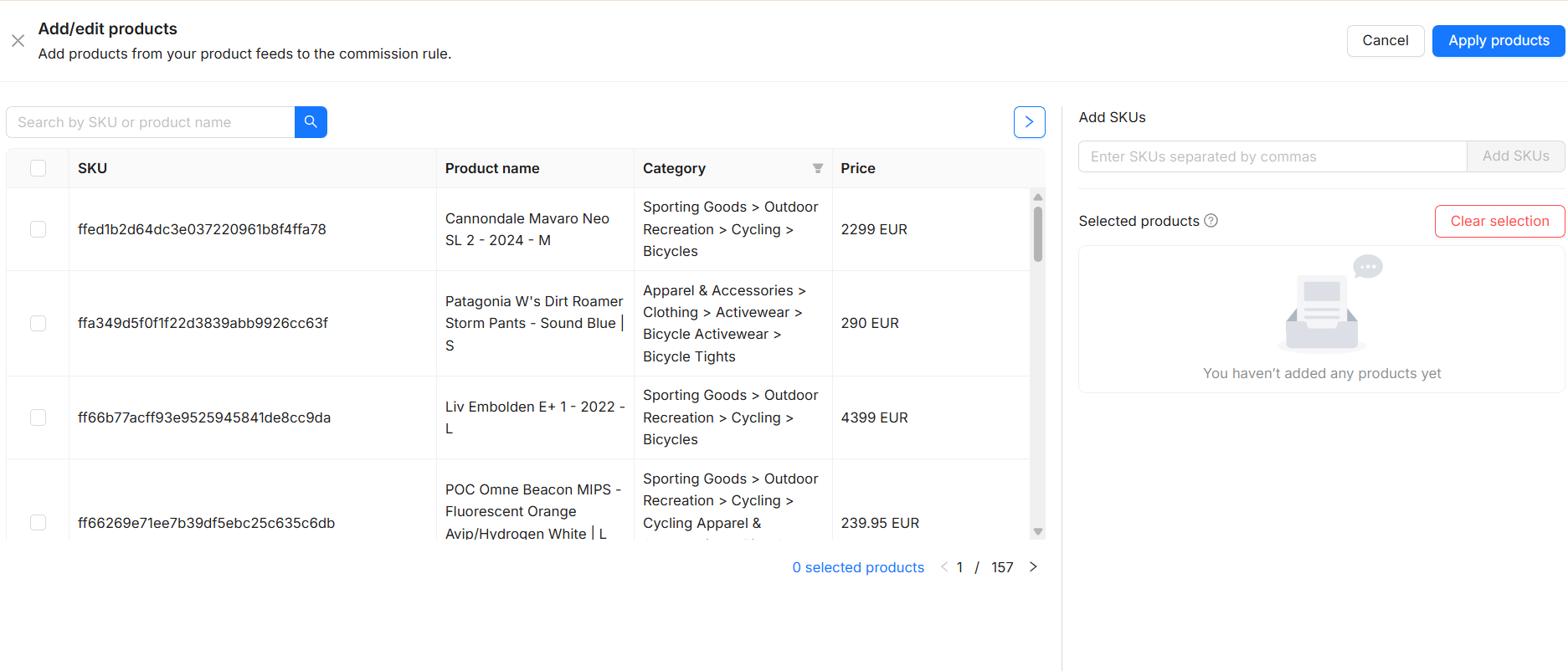
Any SKUs must match the Product Code tracked within the transaction, in order for our system to be able to identify the product as a match to the Rule.
Product Categories
Within our Smart Commissions tool is the option to apply commission to Product Categories.
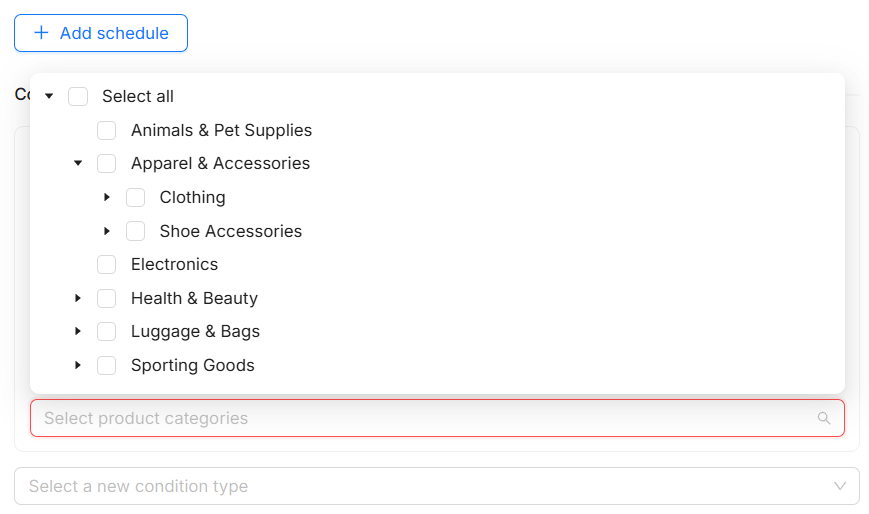
If you have a Product Feed, you can use select Product Categories (as per Google Product Categories) from the category list. This will apply the commission rule to any products that are in the selected categories when the commission is created, but also any new products in these categories which are added in the future, as long as the tracked product matches an item in the provided feed. For additional information, please view: Creating Product Category Commissions
Product Types
Additionally within our Smart Commissions tool is the option to apply commission to Product Types (or, advertiser supplied categories). This can work by ‘grouping’ the products to a type in your feed.
This Product Types option allows advertisers the flexibility to set custom defined product type groups.
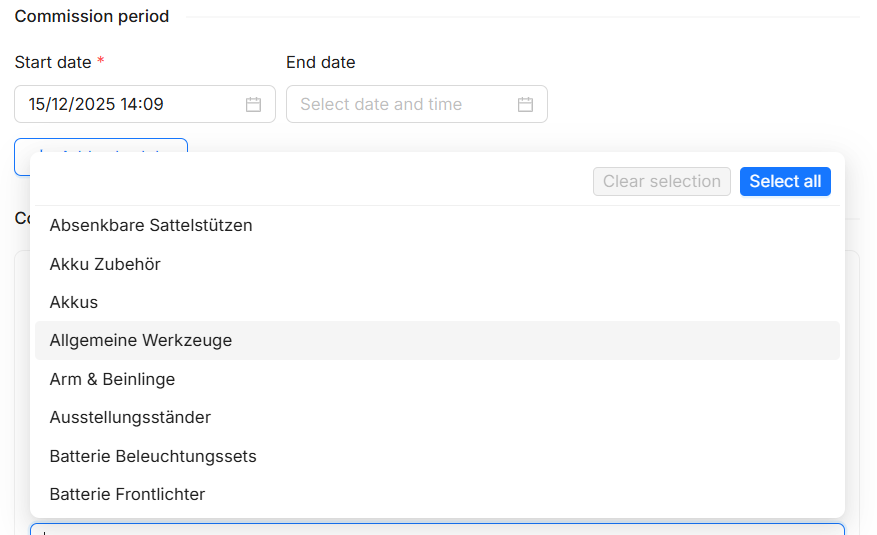
As with Product categories, products added to the provided Product Feed with these Product types will be included in this commission rule. For more information on how to set this up, view: Creating Product Type Commissions
Publishers in this group
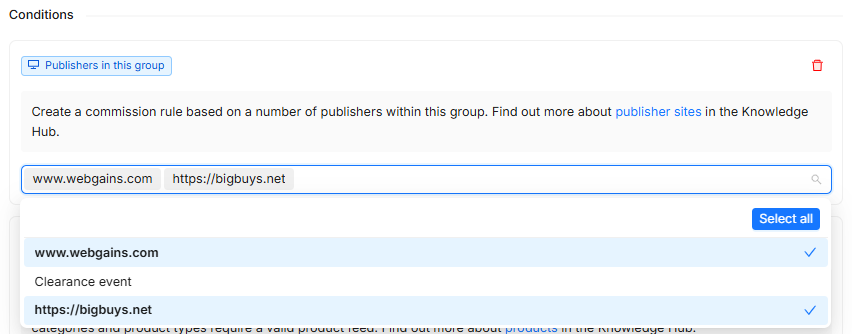
The Publisher sites condition enables you to select a number of publisher sites within a Commission Group. This enable you to create exceptions for Publisher sites within a Commission Group without affecting the rest of the group. This rule will sit above other rules in the Commission group so will be evaluated first.
In the above screenshot example, we are excluding 'Clearance event' from the commission rule, even though they are part of the selected commission group.
Publisher sources
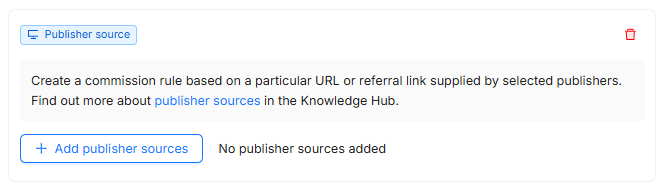
Publisher Sources are referral sources sent by some Publishers within their tracking links. Most commonly this comes from sub-network https://webgains.atlassian.net/wiki/spaces/IH1/pages/3050340425/Subnetworks?atl_f=content-tree publishers, who feature an advertisers links on their own list of publisher sites.
For example, a subnetwork may have their own base of affiliate sites, such as Blog X. If a sale was made via Blog X, the subnetwork publisher can send Webgains the referral information so we know the traffic came from Blog X.
If a publisher is sending us this data, then the option of setting commission based on Publisher Source will be available during the Smart Commission creation, so you can set a specific commission rate for that sub-domain site.
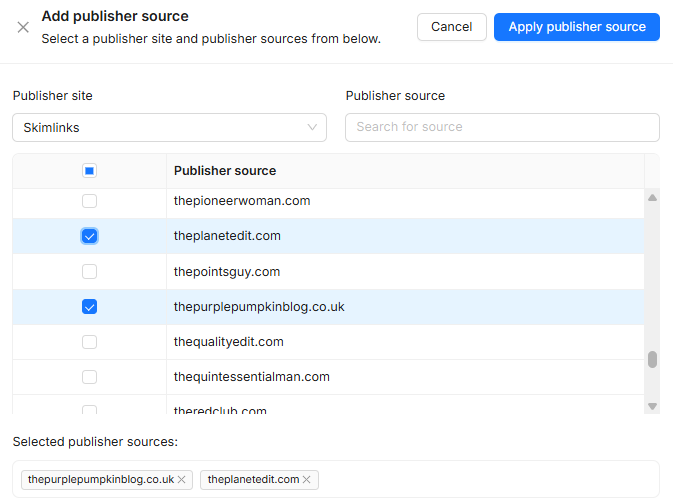
Within the commission rule creation, tick the ‘Publisher Source'/s that you wish to offer the commission to (e.g. Blog X). Then, commission will only be attributed when Webgains have tracked the transaction to Blog X, via the subnetwork partner.
Custom data
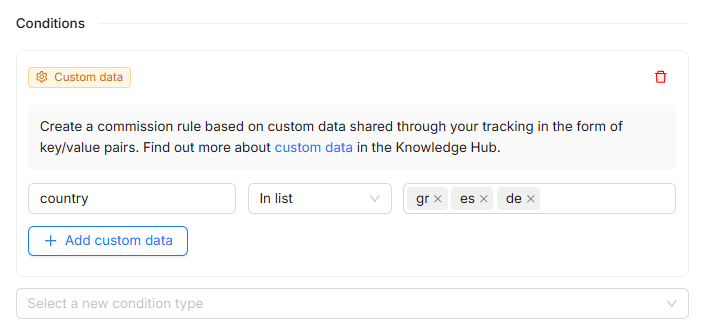
You can provide additional custom data in your integration as Key/Value pairs. For example, you could provide additional product information that’s not in your Product feed, such as Product colour, size or Brand. This custom data must be added to your Webgains Tracking Script.
You can then use logic statement to evaluate this data and tailor for your commission rule:
-
Equal to - matches when the custom data value is exactly the same as the value you enter..
-
Not equal to - matches when the custom data value is different from the value you enter.
-
Greater than - matches when a numeric custom data value is higher than the value you enter.
-
Less than - matches when a numeric custom data value is lower than the value you enter.
-
Contains - matches when a custom data value includes the text you enter.
-
Does not contain - matches when a custom data value does not include the text you enter.
-
Exists - matches when the key is present in the custom data, doesn’t require a value.
-
In List - matches when the custom data value is in a list of values.
-
Not in List - matches any custom data value, but excludes the specified values.
Custom data can be included at transaction level or against each individual item. For more information on how to send this data within your tracking, please speak to your Webgains contact/account manager.
Legacy event
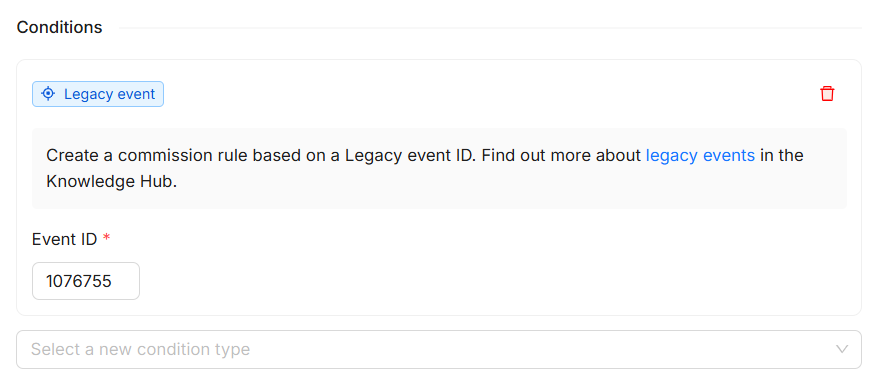
The Legacy event option overrides enables you to apply commission any time a pre-existing commission event is triggered. It will use the rules within an advertisers tracking that triggers the Event, but will apply the commission in the Smart Commission rule.
For example, if the advertiser had an Event set up within our former Commission Management tool that triggers different events for different customer types, the legacy event option can be used to set the commission based on these Events.
Note: Legacy events commission are less favourable than Smart Commission with their own commission rule conditions. By creating commission rules in Smart Commissions, you’ll be able to see much better reporting within the Webgains platform.
Typically, these should only be used as part of migrations from Webgains older Commission Management tool to the new Smart Commissions.
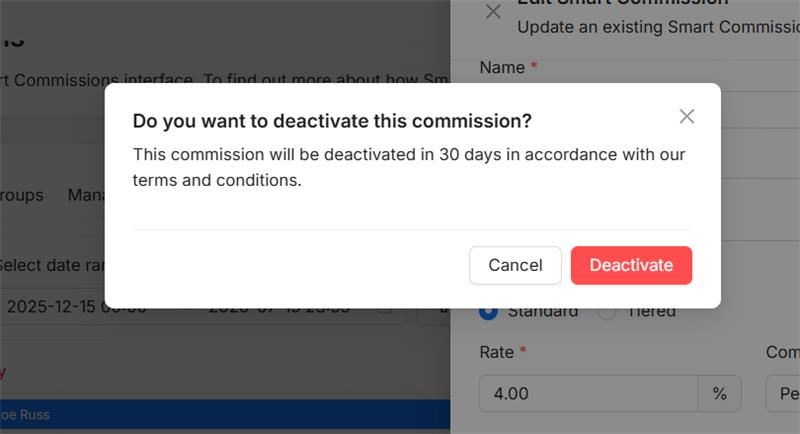
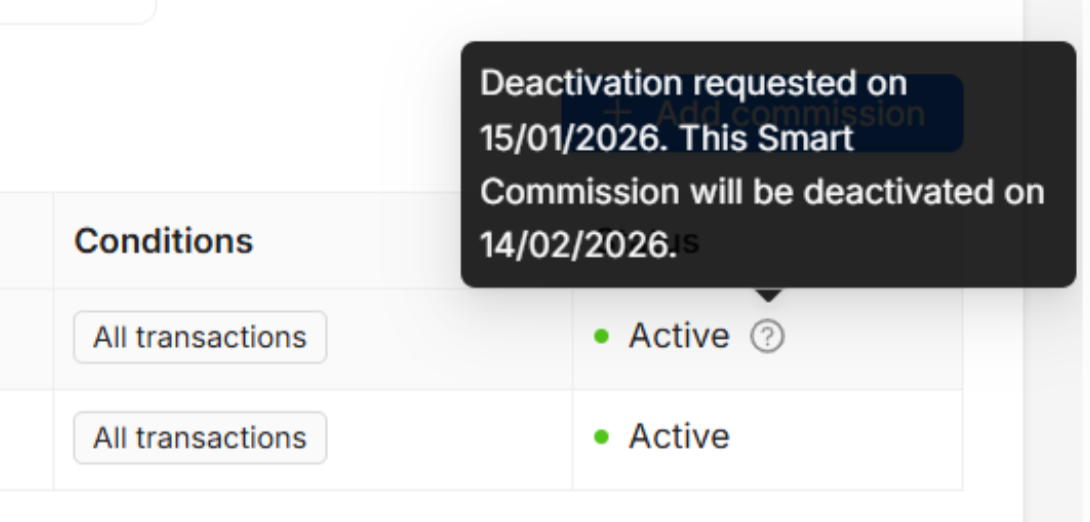
Need to Deactivate an Active Commission Rule? Edit your scheme, and click the 3 dots, then Deactivate.

As per program Terms & Conditions, publishers must have 30 days notice for commission changes, and so there will be a 30 day cooling down period before the commission rule is fully deactivated.