
How does the Commission Attribution work?
-
When the system registers a transaction, it will first check if a voucher is applied to a transaction.
-
If yes, and the program has voucher commission setup for this voucher, then voucher commission will apply (taking #1 commission priority).
-
-
Then it checks against tracked items within a transaction and matches it against any active Smart Commission scheme.
-
If the rules defined in the Smart Commission match the item in the transaction, for example the product included match or the sites included match, then the Smart Commission will be applied to that item.
-
In case there are multiple Smart Commission schemes that an item matches the rules for, it will assign commission in order of the list priority.
-
If no special Smart Commission rule has been attributed to the transaction item, then the Default commission will apply.
It is important to note that the system will be applying the commissions on a line items basis, meaning it will check per item, not per transaction.
Calculating Product Commission
The system will check the Product Code that tracked for a transaction. If it matches the same Product Code/SKU that has been added to the Smart Commission scheme, then the commission can apply (if other conditions match).
More information: Creating Product Level Commissions
The Product Code can be found in the transaction details:

If the product code that we have tracked in the sale is different to the product code/SKU that is added in the Smart Commission rule, the commission cannot apply.
What if the tracked item ID is different to the SKU in the Smart Commission scheme?
For the Smart Commission rule to work as expected, Webgains must be sent the same product ID/SKU in the product feed that is sent in the tracking. So a change will be needed either in the feed or the tracking to ensure these values are the same per product.
Alternatively, there is the option to provide SKUs manually if you do not wish to provide or use the Product Feed data.
Again, these SKUs will need to match the Product IDs sent to Webgains in your tracking script.
Fixed (£) Commission per Item
If a Smart Commission scheme has been set up as Fixed Commission per Item, you need to ensure that Items tracking is working across transactions.
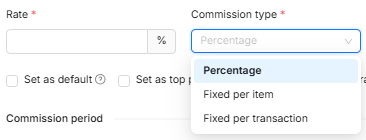
If a transaction has been tracked without Items, it cannot apply a commission set to ‘Fixed per Item’ commission, as there are no tracked Items to apply the commission to.
It will instead apply Default commission, should no other schemes apply.
What else to check for if your Smart Commission is not working:
-
Priority: if a tracked item meets multiple Smart Commission rules, the priority ranking will be respected as per the commission list order.
-
Date range: is the transaction tracked within the date range that the Commission scheme is active?
-
Publisher/site: is the rule set to a specific publisher/s? Please check the Site ID for the publishers in the Group for the rule, and check the transaction was generated by the same publisher site.
-
More info: Creating a Publisher Commission Group
-
-
Customer Type: if the rule is set on Customer Type (new/existing), you will need to ensure that the customer type data is also being sent within the tracking script so we can capture this data for the transaction.
-
Spaces: Is there a space before or after the product ID? If Smart Commission has the SKU "ABCD", but the sale tracked with "ABCD ", the commission will not apply.
Important to Note:
The date and time for the Smart Commission setup will be determined based on the timezone of the User who configures the commission rule.
If you are unsure on the above, or require additional support, please contact your account manager or the Webgains Support Team providing examples of the transactions and which Commission scheme should have applied.