
Within the advertiser platform, you can navigate to our Voucher Code Manager where you can upload vouchers to your program for your publishers to promote. This enables you to run your campaigns exactly as intended, with less manual work, helping you maintain accuracy and efficiency across every voucher placement.
Key features:
-
Site-level exclusivity: Exclusive vouchers can be applied to individual publisher sites rather than entire accounts, giving you far greater precision and control.
-
Precise time-based scheduling: Set exact start and end times for vouchers, making it easier to run short, time-sensitive or synchronised campaigns.
-
Bulk expiry tools: Expire multiple outdated vouchers at once to keep your setup clean, organised and fully up to date.
-
Flexible commission options: Use your default program commission or choose a custom reward structure whenever a voucher is redeemed.
Voucher Code Manager
Here you can see a list of the voucher codes currently uploaded to your Webgains program.
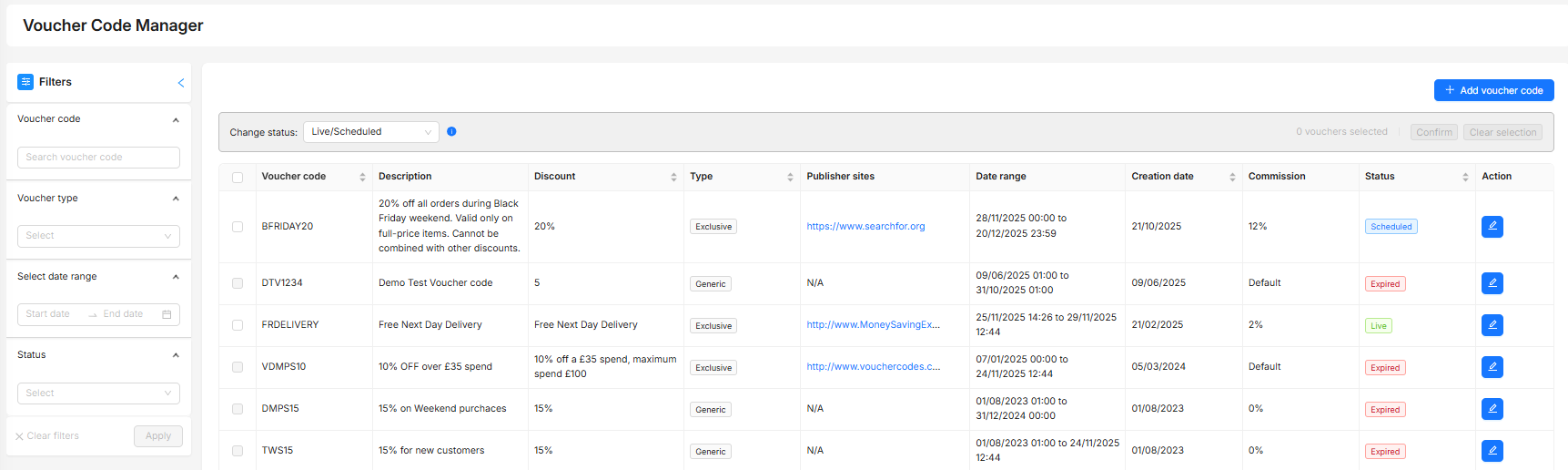
To edit or remove individual vouchers, click on the pencil Edit icon next to the voucher you wish to edit.
Creating new Voucher Codes
Create new voucher codes by clicking on the Add Voucher Code button at the top right hand side. You can either upload vouchers individually, or via a batch file upload to add vouchers in bulk.
When creating a new Voucher, you will be required to enter certain information about the voucher code. The information required will be the same for both bulk and individual voucher creation.
Uploading Vouchers in Bulk
Our Batch Voucher Upload feature allows for advertiser that need to issue large volumes of single‑use voucher codes quickly and securely.
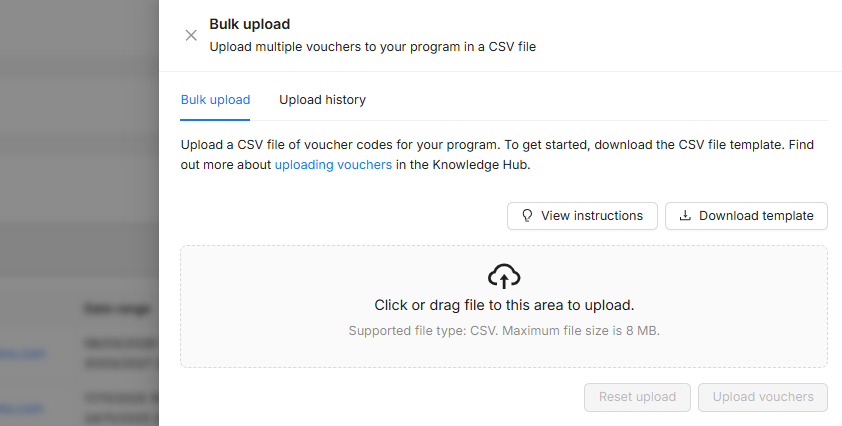
The field requirements for the batch voucher codes will be the same as those when creating an individual voucher code, however the batch feature allows you to download the file template, populate your data, and then re-upload the codes straight into the platform.
The file must be CSV, and contain the headers exactly as per the template file download. The information added in the sheet must be as per the below ‘voucher fields’ guidance.
Voucher Fields Explained
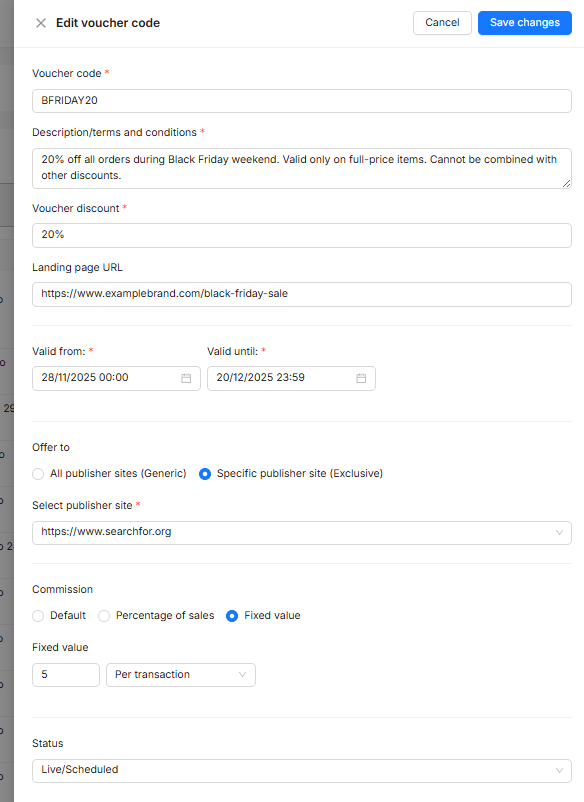
Voucher Code
The code that a customer should add to your site ‘voucher’ field when making a purchase. This must be unique for each entry.
CampaignID
If the voucher code is only available to a specific (exclusive) publisher Site, please add the publisher Campaign ID (also referred to as Site ID) that this voucher belongs to. The Publisher Site must match an active campaign within the program. You can locate the CampaignID within the Publisher Management tool.
If you are offering the voucher to all publishers, you will not need to specify the CampaignID and this field can be left empty.
Voucher Type
This is where you can define if the voucher code should be available to all publishers on your program, or just a specific ‘exclusive’ publisher.
If offering to all publishers, the code will be displayed as a promotional asset for all publishers joined to your program.
If offering to an Exclusive publisher, you will need to then select the Publisher Site this is exclusive to. The voucher will not display to any other publishers to promote.
Setting a voucher as exclusive to a specific Publisher Site also allows for Voucher Commission, as long as you have the necessary tracking set up.
This is not required to input when populating a batch upload file. If the CampaginID field is populated, the voucher type will be Excusive. If CampaignID is blank, the voucher type will be Generic.
Start Date / Expiry Date
The Start Date is the day that this voucher will start being displayed to publishers to promote, and also when any voucher commission will take effect, should you set this up.
This can be set as a future date if you wish to schedule the activity.
Within the platform when creating induvial voucher codes, you can also schedule vouchers on a time-level, making it easier to run short, time-sensitive or synchronised campaigns.
The Expiry Date will be the day that the voucher stops working (and any voucher commission). The day after the Expiry Date has reached, the voucher will automatically change to Expired status.
For batch voucher files: The date must be in the format 'DD/MM/YYYY'.
The expiry date must be after the start date.
(Even if the voucher has no end date, an expiry date must be added. The voucher will expire at the end of the day specified.)
Commission
Voucher Code Commissions can be set up by setting the voucher code to Adjusted commission. This means that if this voucher code is used by a customer via publisher referral, and is tracked within the Webgains transaction (see https://webgains.atlassian.net/wiki/spaces/IH1/pages/2929590305/How+to+add+Voucher+Tracking?atl_f=content-tree ), then you can offer an Adjusted commission rate.
For example: You wish to apply an adjusted rate of 10% commission when voucher code ‘WELCOME’ is used.
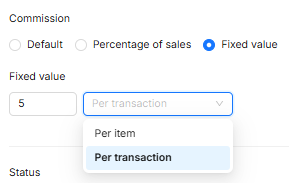
This flexible Voucher Commission can be set as a Commission Percentage, or a Fixed Commission Value per Transaction or tracked Item.
Within the platform, if adding individual voucher codes, simply select the commission type and add the commission amount:
When populating a batch voucher code upload file:
Commission Amount
The amount of commission that should be awarded when this code is used. This should be as a number, with no currency or percentage symbols. Commission type is defined next. This value will not be used if commission type is set to 'default'.
Commission Type
The type of commission awarded when the voucher code is used. Values allowed: ‘default', 'percentage', 'fixed', 'fixed_transaction', or 'smart_commission’.
By default, ‘smart commission’ type will be selected. This means that the voucher will calculate the commission per item using existing Smart Commission rules.
-
‘fixed’ will apply the commission per tracked item (i.e., if there are 3 items in the transaction, and the voucher was set as £5 ‘fixed’ commission, total payout will be £15)
-
‘fixed_transaction’ will apply the commission per transaction
If you wish to award 5% when the code is used, Commission Amount should be ‘5', and Commission Type should be 'percentage’.
If you wish to award the default program commission, Commission Amount can be left blank, and Commission Type should be ‘default’.
This will use the Default commission scheme set up in the program. If there is a 'Default’ Smart Commission rule setup, then this will be used. Otherwise it will revert to the Default Event rate.
Description
A description to inform your publishers about what the code can be used for. For example, is it for certain products, or conditions?
Voucher Discount
To inform your publishers of the discount that the customer will receive.
Landing Page URL
If your voucher relates to a specific product or category, you can add the new landing page URL here. This must include the protocol (https://). If you do not add a URL here, traffic will be directed to your default program landing page.
Status
Lastly, the Status of the voucher must be set, to display if it should be Live or Hidden. Hidden vouchers will not be visible to publishers to promote within their platform view, but any voucher tracking and voucher commission will still be effective.
Within batch voucher code upload files, this should be either 'Live' or 'Hidden'.
Related reading:
Example values for a Batch File Upload:
|
Column |
Example Value |
|---|---|
|
Voucher Code |
SUMMER2026 |
|
Campaign ID |
12345 |
|
Start Date |
01-03-2026 |
|
Expiry Date |
30-03-2026 |
|
Commission Amount |
10 |
|
Commission Type |
percentage |
|
Status |
Live |
|
Description |
Summer sale 10% off all items |
|
Destination URL |
|
|
Discount |
10% off |